
First: Uninstall Current Software
1) Press and hold on the K12 Asset Pro icon

2) Click on “App Info”

3) Click “Uninstall” and then Confirm when prompted

Next: Download New Software (using Google Play Store, if using the Aurora store please see steps below)
1) Use your finger to swipe up from the bottom of the screen to open the app drawer

2) Click on “Play Store”

3) Click in the search bar at the top of the screen

4) Search “K12 Asset Pro”

5) Select “K12 Asset Pro”

6) Click “Install”

7) Click “Open”

8) Log in using your regular credentials! (Your client name will be the XXXX part of your school’s URL: https://XXXX.k12asset.com)

Next: Download New Software (using Aurora, if using the Google Play Store see steps above)
1) Use your finger to swipe up from the bottom of the screen to open the app drawer
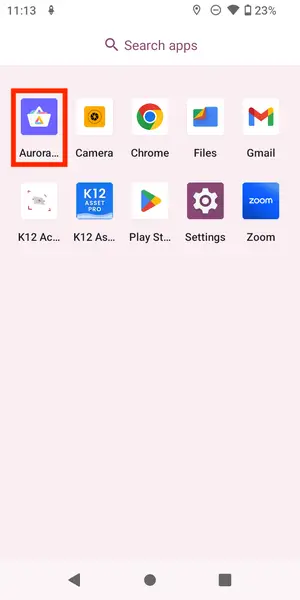
2) Click on “Aurora”
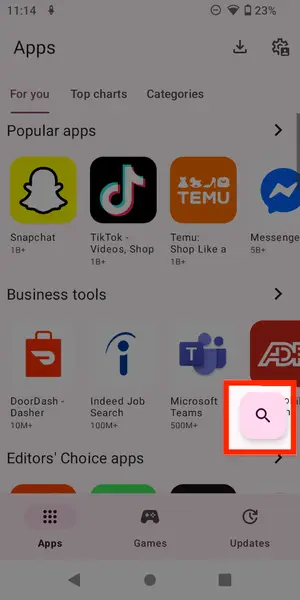
3) Click the search button on the lower right of the screen
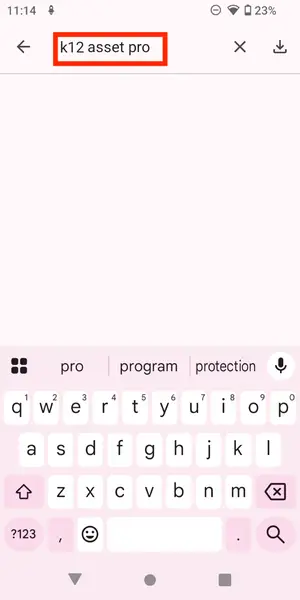
4) Search “K12 Asset Pro”
5) Select “K12 Asset Pro”
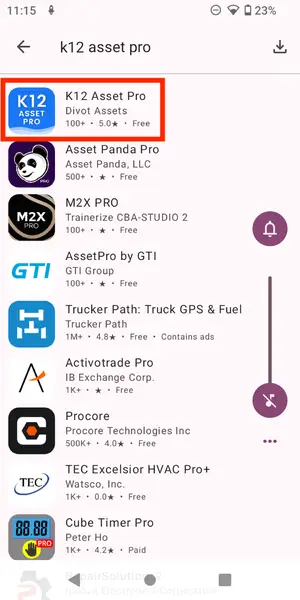
6) Click “Install”
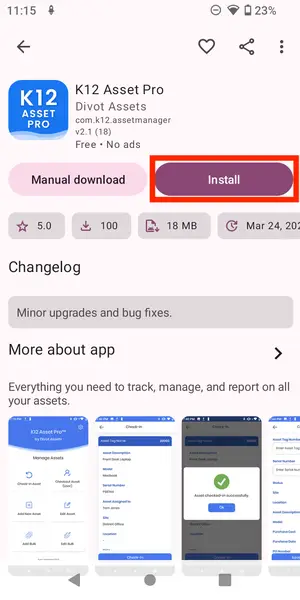
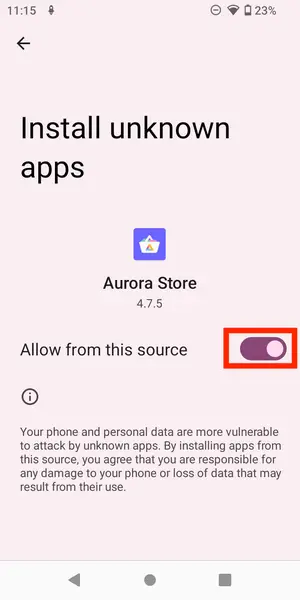
7) If promoted, slid this toggle to the right to be “on”.
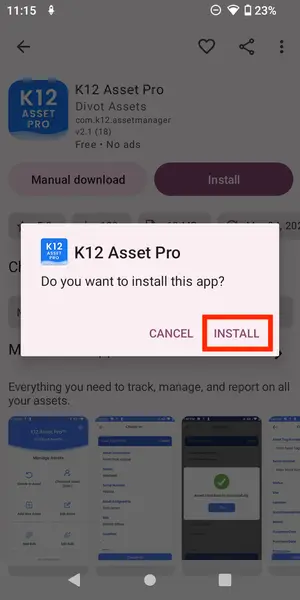
8) You may now need to click Install again.
9) If prompted, click “Install” in the popup window.
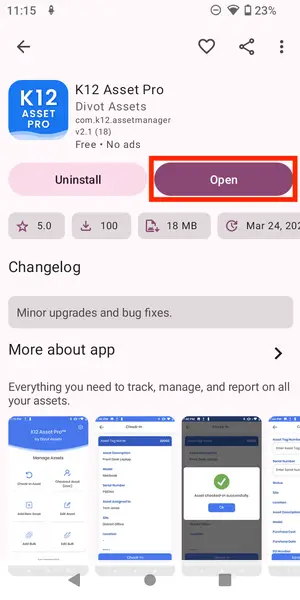
10) Wait a moment and you should now be able to click the Open button.
11) Log in using your regular credentials! (Your client name will be the XXXX part of your school’s URL: https://XXXX.k12asset.com)